Quickstart Guide
1. Input Knowledge
Provide knowledge about your business operations to AI staff by uploading files, web links, and multimedia (audio, images, video). This helps Agents understand the context and perform tasks with the highest accuracy and according to your needs.
Load knowledge for business operations by:
Business Knowledge Management
- Select Settings from the left menu bar
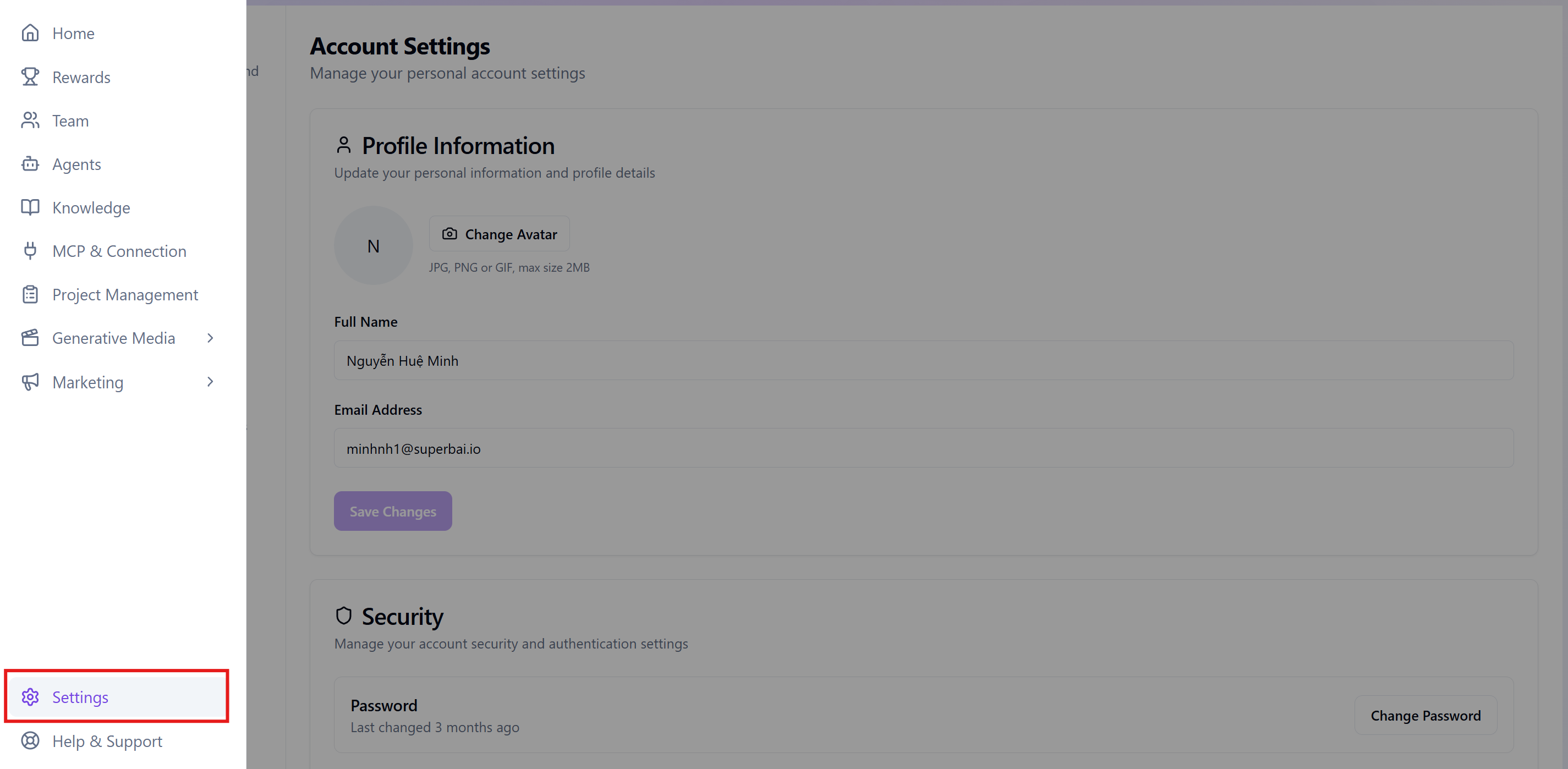 Settings
- Select Workspace
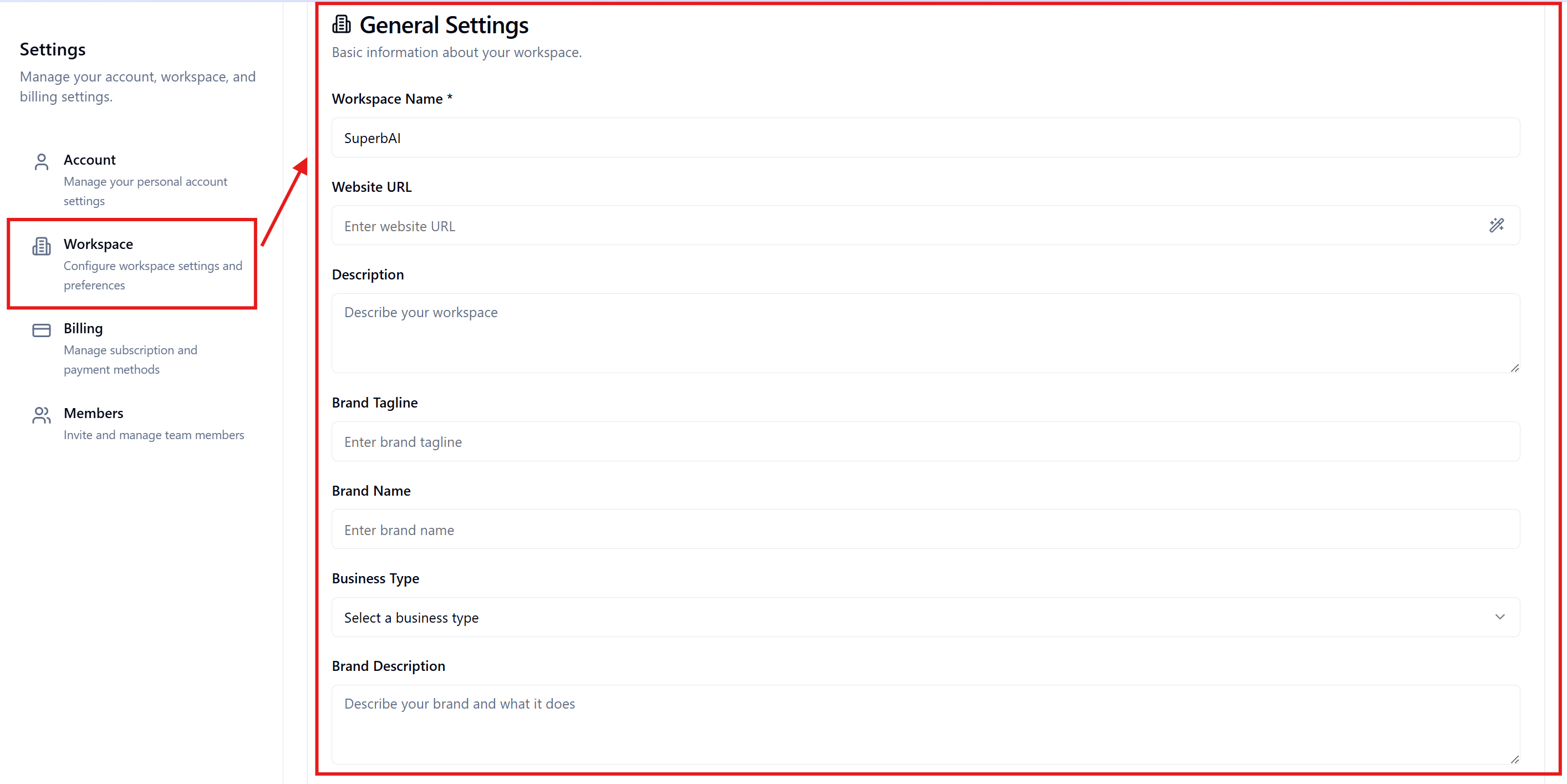 Workspace
- Enter detailed information about your business profile
- Click Save to complete
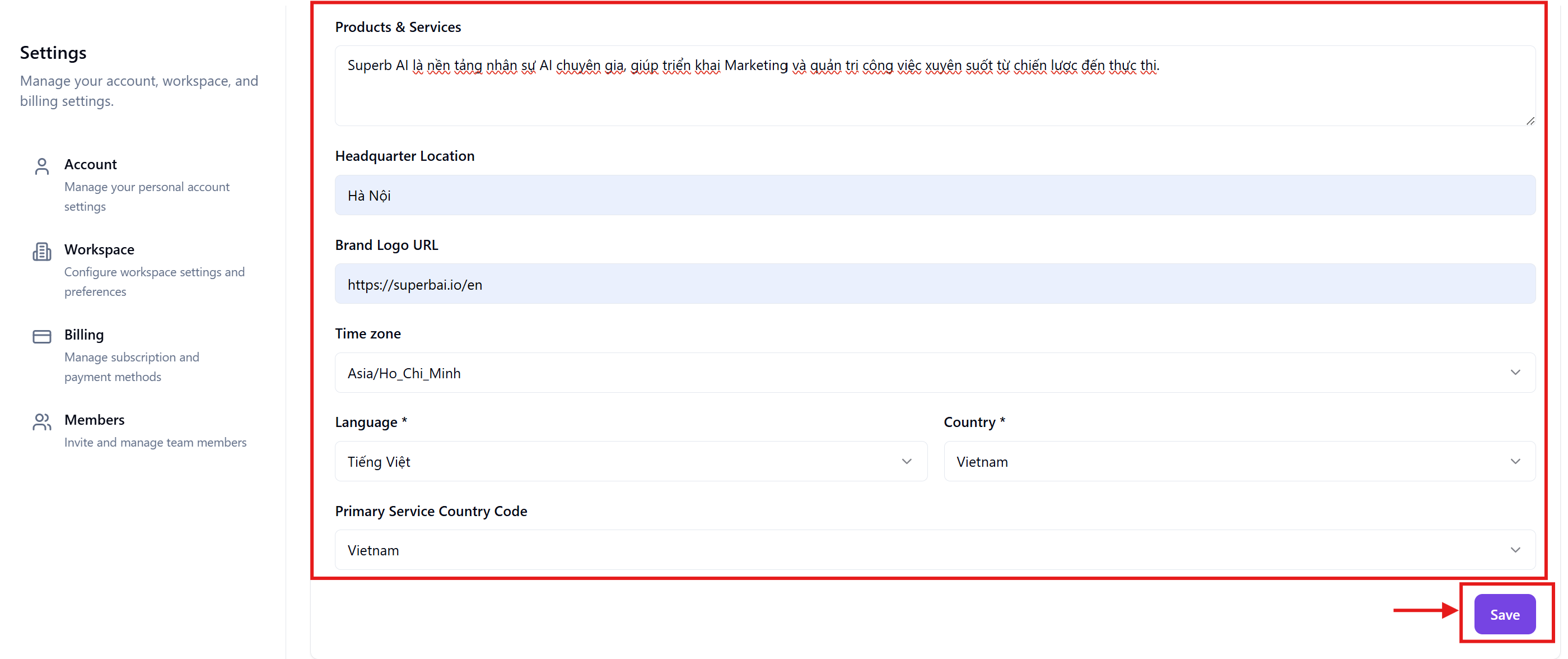 Business Profile
Knowledge Management
- Select Knowledge from the left menu bar
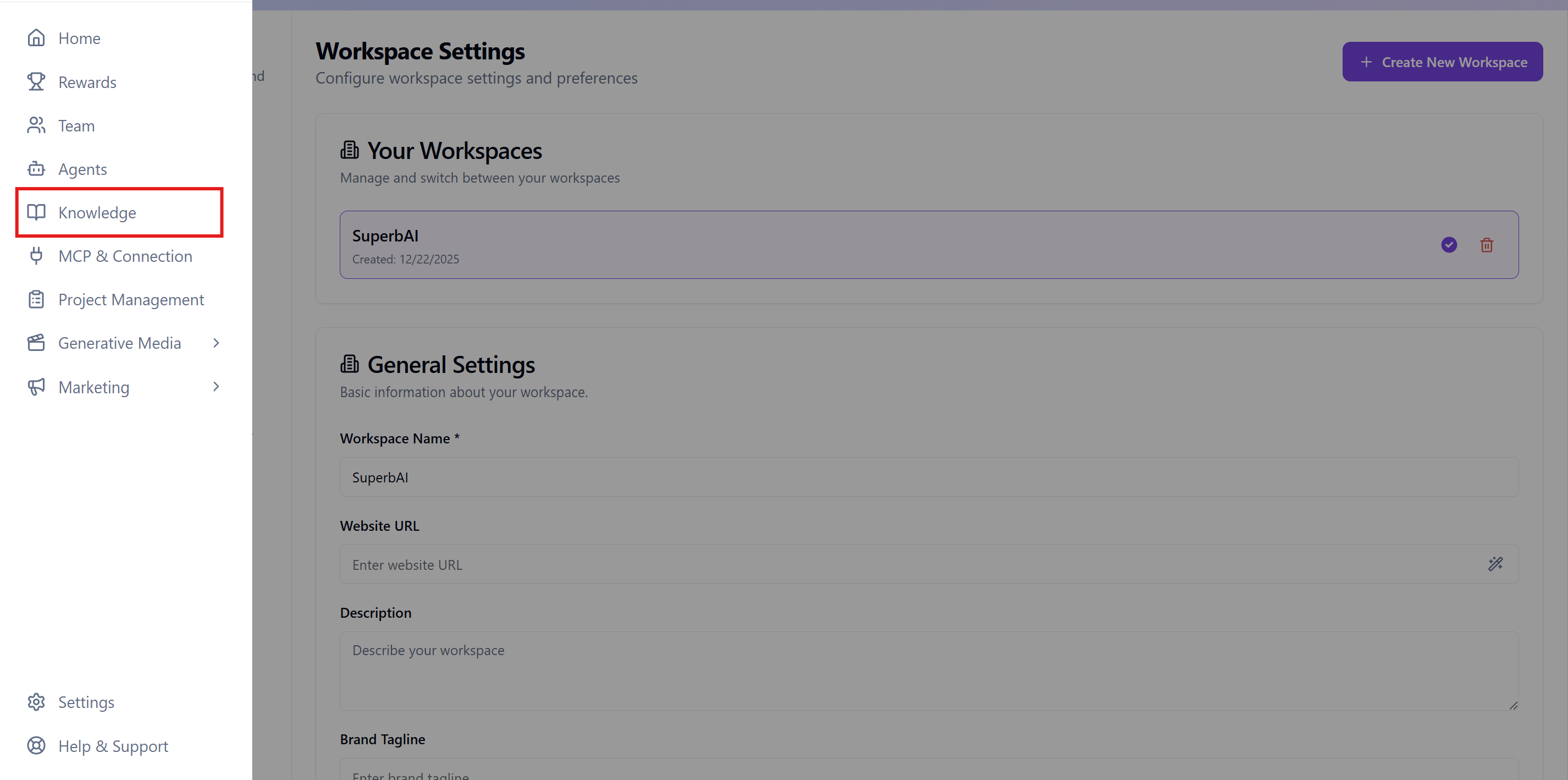 Knowledge Menu
- Choose the knowledge source to load (Links, Documents, Multimedia, or External Database)
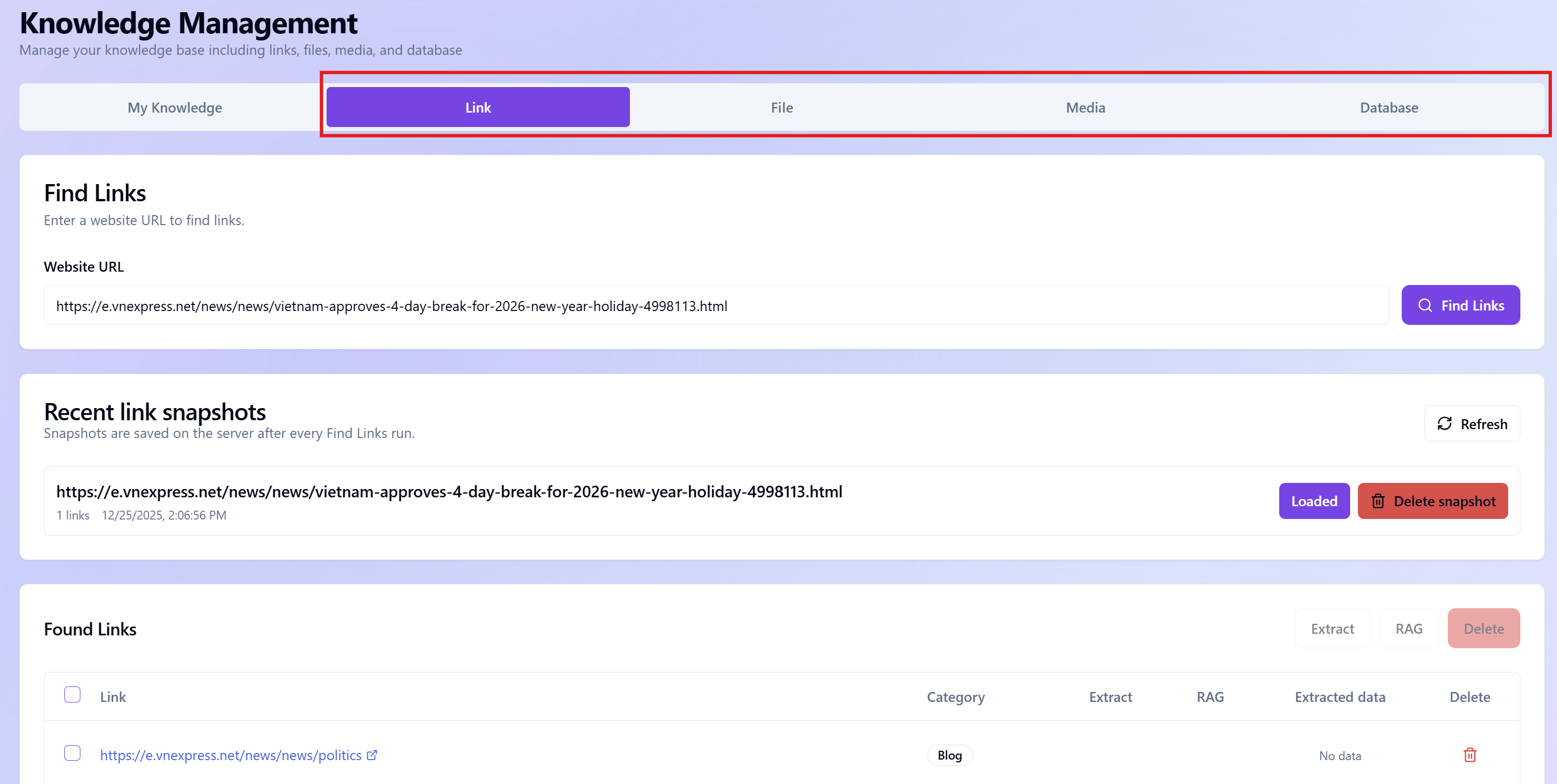 Knowledge Sources
- Select My Knowledge to view and manage uploaded data. The system automatically integrates data into the Agent's knowledge base
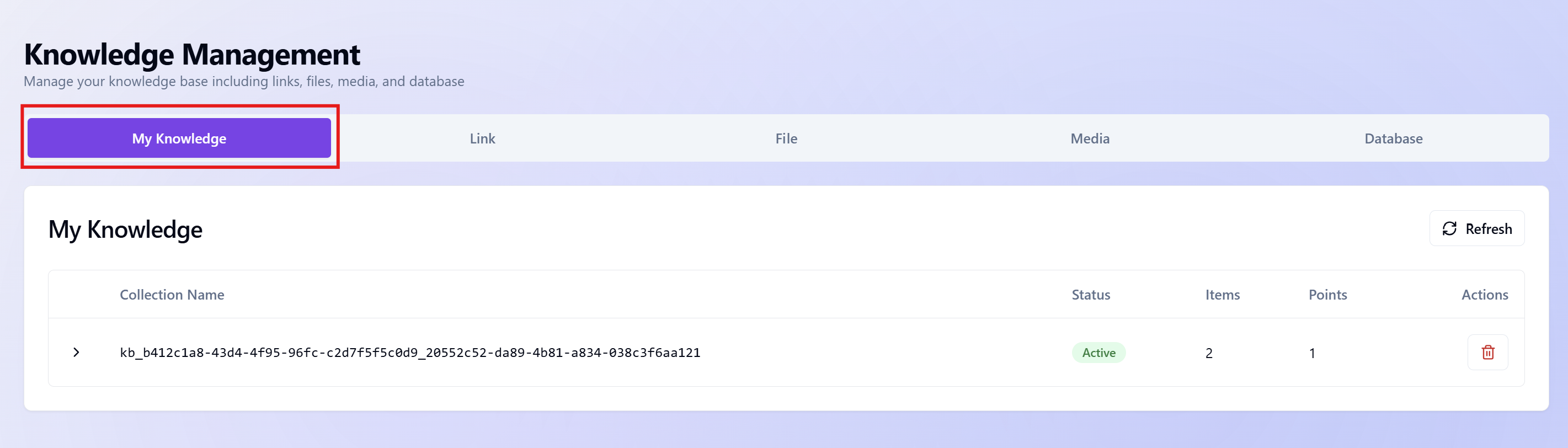 My Knowledge
2. Agents
A system of specialized AI staff designed to simulate the capabilities of an expert in each specific position and field. Based on requirements, each agent thinks independently, creates execution plans, and executes to meet your needs in Marketing and work management.
3. Chat with Agent
You can chat with Agents in 2 ways:
Method 1:
- Access the Agents section to view the list of available AI staff.
Chat-with-agent-(1).png) Agents List
Agents List
- Select an Agent suitable for your needs (e.g., CMO, AI SEO, AI Marketing) by clicking "Start Chat".
Chat-with-agent-(2).png) Start Chat
Start Chat
- Enter your question in the chat box, attach files if needed, and click the "Send" icon to start the session.
Chat-with-agent-(3).png) Chat Interface
Chat Interface
Method 2:
Some Agents have their own Dashboard, you can chat with the Agent directly on the Dashboard screen to both request and monitor execution results.
- Select the Agent's dashboard from the function menu. For example: Marketing/ Facebook.
B%C6%B0%E1%BB%9Bc-1-c%C3%A1ch-2.png) Dashboard Menu
Dashboard Menu
- Click the Agent icon at the bottom right corner
B%C6%B0%E1%BB%9Bc-2-c%C3%A1ch-2.png) Agent Icon
Agent Icon
- Chat with Agent
B%C6%B0%E1%BB%9Bc-3-c%C3%A1ch-2.png) Dashboard Chat
Dashboard Chat
4. Build-in Dashboard
Visual management system designed specifically for each Agent based on function and professional knowledge. This tool helps you track progress and control output quality, ensuring all execution results align with your work goals and strategy.
PM-T%E1%BA%A5t-c%E1%BA%A3-c%C3%B4ng-vi%E1%BB%87c.png) Build-in Dashboard
Build-in Dashboard
5. Connection
Agents can interact with external systems such as retrieving data/documents, posting to platforms through application links.
You can establish links between AI staff and your application ecosystem (Google Drive, Sheets) and social media platforms (Facebook, LinkedIn, Instagram).
(This feature allows Agents to automatically retrieve data or directly interact and publish content to external digital environments.)
6. Idea Hub
Idea Hub is an inspiration and quality guidance center, providing a repository of ideas and pre-designed script templates to optimize performance for AI staff across all platforms.
Access the Idea Hub for each Agent by:
- Select the Agent's dashboard from the function menu. For example: Marketing/ Facebook.
b%C6%B0%E1%BB%9Bc-1-idea-hub.png) Idea Hub Menu
Idea Hub Menu
- Click "Ideas" on the menu bar
b%C6%B0%E1%BB%9Bc-2-idea-hub.png) Ideas Menu
Ideas Menu
- Find and select ideas that match your needs
b%C6%B0%E1%BB%9Bc-3-idea-hub.png) Ideas List
Ideas List
7. Prompt templates
Prompt Templates is a repository of specialized pre-designed prompts created by experts. This is an optimal solution to help you manage Agents to execute complex tasks with the highest accuracy without spending effort composing from scratch. With Prompt Templates, you can:
• Search by keyword: Enter keywords to quickly filter and identify prompt templates suitable for your specific goals.
• Use immediately: Click the "Use" button to instantly insert the script into the chat box; the Agent will immediately receive the standardized thinking framework to process the work.
• Expert knowledge across multiple fields: Flexibly apply standard processes from Project & Product Management (Proma, CPO), Senior Strategy (CMO, CCO) to Multi-channel Marketing (Famarex, Inmarex, Limarex, X & Email Manager).
prompt-temp-quickstart.png) Prompt Templates
Prompt Templates